To delete your Janitor AI account, go to Settings → Security, scroll to the bottom, click Delete account, and enter the 6-digit code sent to your email. The deletion is permanent and there is no recovery window.
That part takes about a minute. The part that catches people out is everything that needs to happen before you click it — because once the account is gone, you lose the ability to cancel a subscription from inside it, export anything, or fix a login problem.
Here is the order that actually works.
Before you delete: three things you can’t do afterward
1. Cancel Janitor+ in the right place
Deleting your account does not automatically stop a subscription billed through an app store. If you subscribed inside the iOS or Android app, Apple or Google is the one charging you, not Janitor AI — and Janitor AI’s own FAQ states that app-based subscriptions cannot be cancelled from the web at all.
Where you cancel depends on where you subscribed:
| You subscribed via | Cancel here |
|---|---|
| Janitor AI website | Settings → Billing → Manage Subscription (redirects to Stripe) |
| iPhone / iPad app | Settings → your name → Subscriptions → tap the subscription → Cancel Subscription |
| Android app | Google Play → Subscriptions → select it → Cancel subscription |
Not sure which one you used? Search your email for a receipt from Apple or Google. If there isn’t one, it was the website.
Cancelling doesn’t cut you off immediately. Janitor AI confirms your subscription stays active until the end of the current billing period, after which the account reverts to the free tier. So there’s no penalty for cancelling first and deleting a few minutes later.
Official references: Janitor AI’s subscription FAQ, Apple’s cancellation guide, Google Play’s cancellation guide.
2. Export anything you want to keep
Janitor AI states that deletion permanently removes your posts, characters, personas, and profile information, and that none of it can be recovered. There is no trash folder, no 30-day grace period, and no way to ask support to pull a bot back.
If you built characters you’re proud of, copy them out first. Bot definitions can be saved manually by opening each character’s edit screen and pasting the fields into a text file — tedious, but it costs nothing and it works regardless of what third-party tools are up or down this month.
Community-made exporters and browser extensions also exist for bulk chat downloads. They’re convenient, but treat them with the same caution you’d apply to any tool you hand your login session to.
3. Confirm you can open the email on the account
This is the one that strands people, and it’s worth being blunt about: if you can’t read the inbox tied to your account, you cannot delete the account.
The confirmation code goes to your registered email address. Janitor AI’s documentation is explicit that its support team cannot manually delete accounts on your behalf for privacy and security reasons, and that if you signed up with a temporary address or an email you’ve since deleted, the company will not be able to assist you.
A few guides suggest the obvious workaround — just change your email first, then delete. That advice doesn’t survive contact with the actual flow. Changing your email on Janitor AI requires you to confirm the request from both the old address and the new one, by clicking a link in each inbox. If the old inbox is unreachable, the email change fails for exactly the same reason the deletion does.
So the realistic answer for a lost-inbox account is that you can’t delete it yourself. What you can do is strip it down: unpublish or delete your bots, clear your profile bio and avatar, and remove any personal detail from your persona. The shell account stays, but nothing identifying stays with it.
How to delete your Janitor AI account
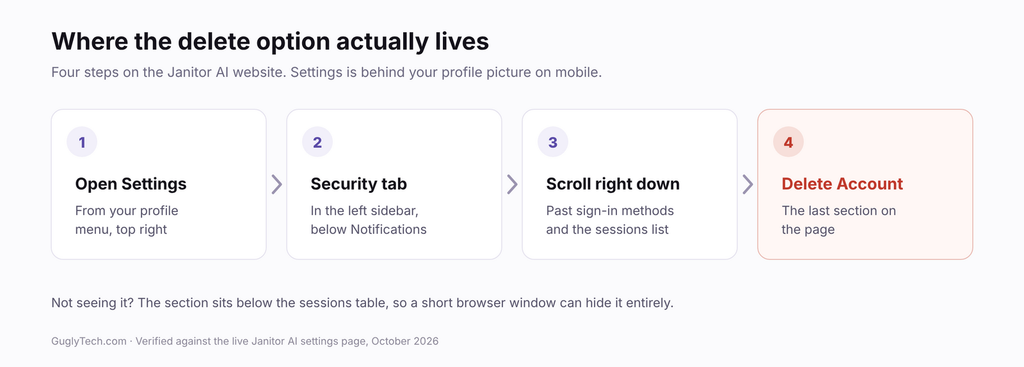
Once the three steps above are done, the deletion itself is short.
- Log in at janitorai.com on web or in the app.
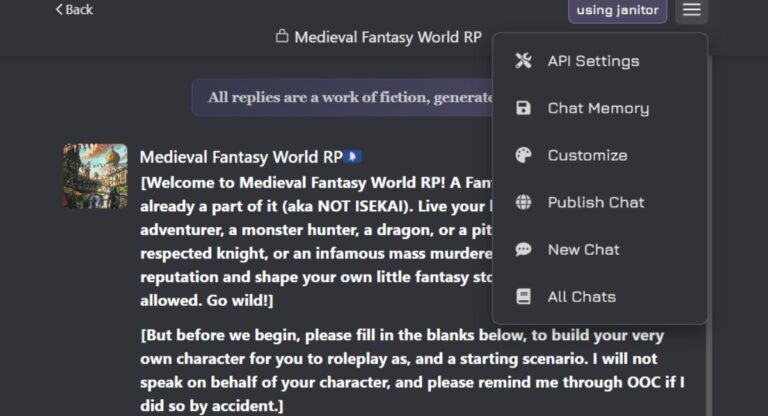
- Open Settings from your profile menu.
- Select the Security tab.
- Scroll to the bottom of the page.
- Click Delete account.
- Check your email for the 6-digit one-time code.
- Enter the code to confirm.
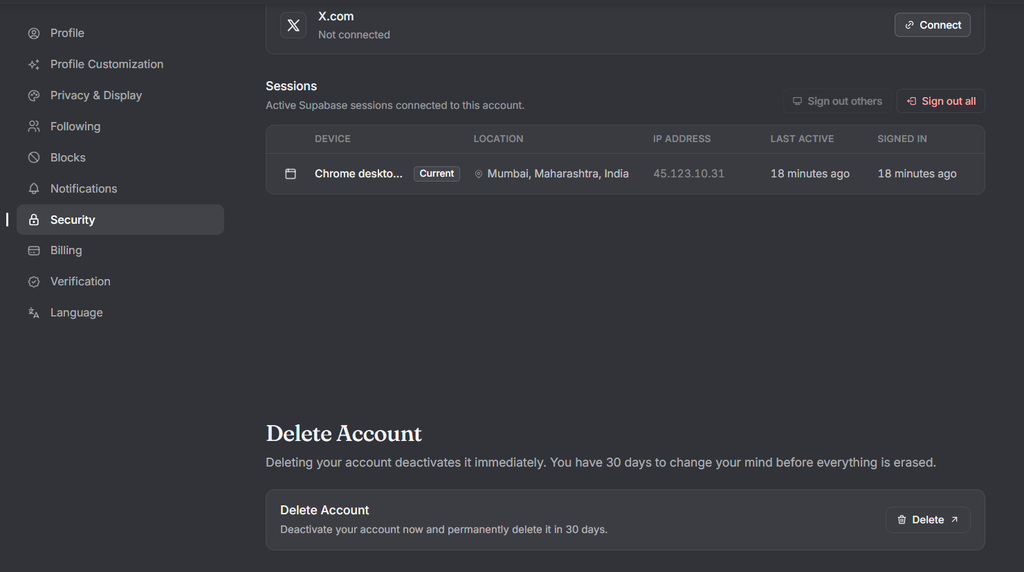
The steps are the same on mobile and desktop — mobile just puts Settings behind your profile picture.
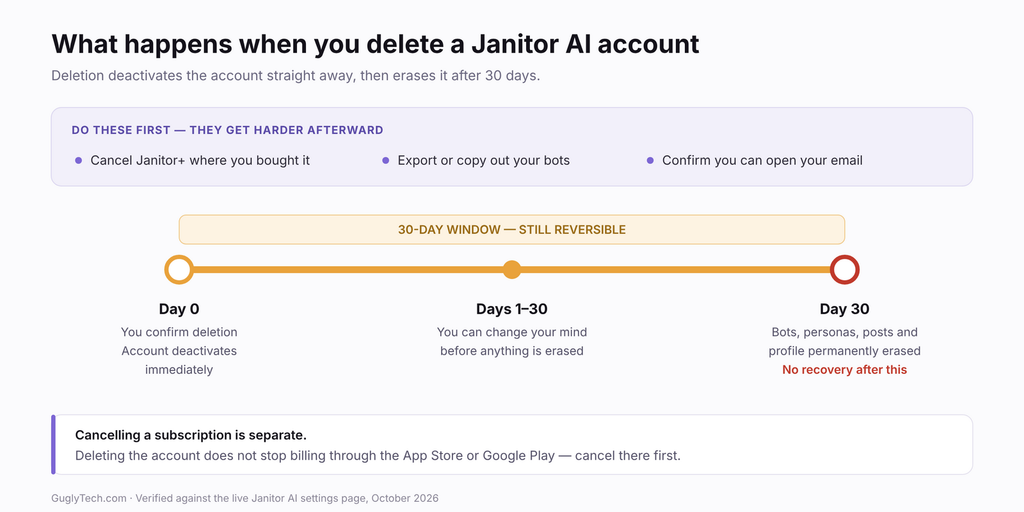
A note on labels: some older guides describe a “Danger Zone” section or a “Delete Profile” button. Janitor AI’s current help documentation describes the control as Delete account, at the bottom of the Security tab. If a walkthrough you’re following doesn’t match what you see on screen, it’s probably out of date rather than you being in the wrong place.
Source: Janitor AI — How do I delete my account?
What actually gets deleted
Here’s where precision beats reassurance.
Janitor AI’s help documentation lists posts, characters, personas, and profile information as permanently removed. Your public bots disappear for everyone, including people who had been chatting with them.
What that wording doesn’t spell out is how long private chat logs or backend records persist after an account closes. The company hasn’t published a specific retention period for them. If your reason for leaving is privacy rather than convenience, that gap is worth knowing about before you assume deletion equals erasure. We dig into how the platform handles user data in our look at whether Janitor AI is safe to use.
Users in the EU, UK, California, and other jurisdictions with data-protection law can submit a separate formal data deletion request to [email protected]. That’s a different mechanism from clicking the button, and it’s the one with a legal obligation behind it.
When the deletion doesn’t go through
The code never arrives. Janitor AI’s guidance is to check spam, junk, and promotions folders, make sure the inbox isn’t full, confirm that mail from [email protected] isn’t blocked or filtered, wait a few minutes, and try again from a different browser or device. Support can’t send you a code manually — the system is fully automated.
You signed up with Google, Apple, Discord, or X. Those are sign-in methods layered onto the account, and you can manage or disconnect them from the same Security page. The deletion code still goes to the email address on the account, so make sure you know which one that is.
The button does nothing. Usually a front-end hiccup. Try a hard refresh, a different browser, or desktop instead of the app. During a wider outage the Security page can load while the action behind it fails, so wait and retry rather than clicking repeatedly.
Your account is banned. You can still delete it through the normal flow as long as you can log in and receive the code. If you’d rather have the ban reviewed, that’s a separate appeal process.
Is deleting actually what you want?
Worth thirty seconds of thought, because it isn’t reversible.
If you’re leaving because replies broke, the proxy stopped working, or you kept hitting error codes, that’s a fixable problem rather than a reason to burn the account. Most of those have known causes, which we’ve collected in our guide to Janitor AI error messages. Switching which model powers your chats often solves it outright, and setting up a free OpenRouter model costs nothing and takes a few minutes.
If you’ve simply lost interest, you don’t have to delete anything. An unused account costs you nothing, and you can unpublish your bots and empty your profile to shrink your footprint without closing the door.
Delete when you genuinely want the account and its content gone, you’ve cancelled anything you’re paying for, and you’ve saved whatever you’d miss. For context on what you’d be walking away from, our full review of the platform covers what it does well and where it falls short.
FAQ
Janitor AI Account Deletion FAQ
How do I delete my Janitor AI account?
Go to Settings, open the Security tab, scroll to the bottom, click Delete account, and enter the 6-digit verification code emailed to you.
Can I recover my account after deleting it?
No. Janitor AI states that deletion is permanent and that your data cannot be recovered. There is no grace period.
Does deleting my account cancel my Janitor+ subscription?
Not if you subscribed through the iOS or Android app. Those subscriptions are billed by Apple or Google and must be cancelled in the App Store or Google Play. Web subscriptions are cancelled under Settings → Billing → Manage Subscription.
Can support delete my account for me?
No. Janitor AI says its support team cannot manually delete accounts, for privacy and security reasons. Only you can complete the process.
What if I can’t access the email I signed up with?
You won’t be able to delete the account, and you won’t be able to change the email either, since that change has to be confirmed from both the old and new addresses. Your practical option is to remove your bots and clear your profile details instead.
Does deleting my account remove my chat history?
Janitor AI lists posts, characters, personas, and profile information as permanently removed. It hasn’t published a specific retention period for private chat logs or backend records. If full erasure matters to you, send a formal data deletion request to [email protected].
Will my bots disappear from other people’s accounts?
Yes. Public characters you created are removed from the platform when your account is deleted.
How long does deletion take?
It completes as soon as you enter the verification code. There is no waiting period or pending state.